Claude Opus 5.5 creates motion graphics by planning the sequence and writing editable animation code, while external tools render that code into video. Claude Design is useful for visual direction, early compositions, and prototype frames. Claude Code is the stronger production environment because it can create project files, run commands, inspect rendered stills, and revise the build. Remotion, HTML, Canvas, SVG, or WebGL defines what every frame should display. A browser or framework renderer turns those instructions into frames. FFmpeg encodes the frames and audio as an MP4 or another delivery format. When a scene needs photoreal imagery or generated footage, VosuAI MCP can supply source media without replacing the code-based timing, typography, and compositing system.
The most dependable approach is therefore a code-first production workflow with generated media added only where it solves a real visual problem. That distinction matters because Anthropic documents Claude Opus 5.5 as a text-and-image input model with text output, not as a native text-to-video model.
How Claude Opus 5.5 Creates Motion Graphics
Claude Opus 5.5 creates the logic, assets plan, and render instructions for motion graphics rather than returning a finished video from the model response. It can translate a creative brief into scene components, animation curves, timing data, responsive layouts, render scripts, and quality checks. In a tool-enabled environment, it can also execute the project, inspect output frames, diagnose visible defects, and revise the source.
The practical production chain has five connected stages:
| Stage | Primary component | Output |
|---|---|---|
| Creative specification | Brief, approved copy, brand assets, and references | Timestamped shot plan and constraints |
| Motion system | Claude-generated React, HTML, Canvas, SVG, or WebGL code | Editable composition and timeline |
| Frame rendering | Remotion or a controlled browser session | Exact frames at a fixed frame rate |
| Media assembly | FFmpeg and approved audio | Encoded video and audio streams |
| Quality control | Contact sheets, transition strips, playback, and metadata checks | Corrected delivery files |
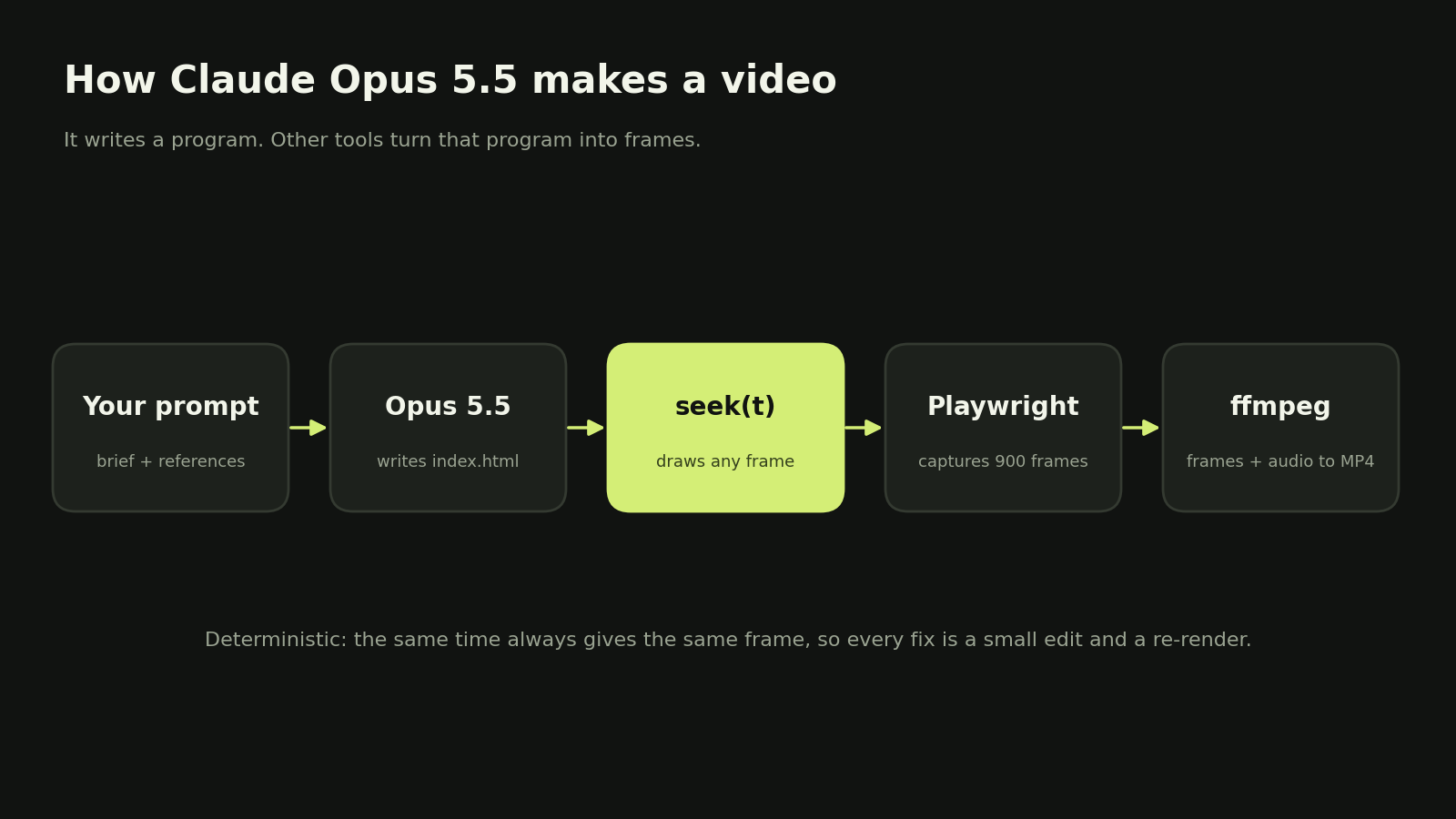
Fig. 1. The code-rendered video pipeline.
This pipeline is especially effective for kinetic typography, interface demonstrations, animated charts, logo systems, explainers, abstract geometry, and repeatable campaign templates. Those formats reward precise timing and editable layout. Naturalistic performances, detailed environments, and complex physical action usually need recorded or generated source footage before Claude composites the final design.
What Claude Opus 5.5 Actually Produces
Claude Opus 5.5 produces text, code, structured plans, and revisions that describe the motion graphic. According to Anthropic's current model specifications, the model accepts text and images, returns text, supports a 1 million token context window, and can produce up to 128,000 output tokens in the standard API configuration. Those capacities can help with a large codebase or a long creative specification, but they do not remove the need for clear constraints.
Useful model outputs include:
- A scene map that ties narration, on-screen copy, and visuals to time ranges
- Reusable React components or browser-native drawing functions
- Data files for copy, timing, colors, and asset references
- Render commands for previews, image sequences, and final exports
- Frame-review prompts that separate factual, visual, and technical defects
The model can inspect still images supplied from a reference or render. It should not be asked to infer motion, audio timing, or a complete edit from a filename alone. Extract representative frames with timestamps and measure audio with appropriate software.
What Renders and Encodes the Video
A renderer creates the visual frames, and an encoder packages those frames with audio into a playable file. For browser-native work, Chromium can display the requested state while Playwright captures each frame. In a Remotion project, Remotion evaluates React components at successive frame numbers. FFmpeg then converts the image sequence or rendered stream into a delivery codec such as H.264.
Keep the responsibilities separate:
- Claude defines and revises the animation system
- Remotion or Chromium calculates and paints each frame
- Playwright can automate deterministic browser capture
- FFmpeg encodes, combines, trims, and inspects media streams
A successful command only proves that a process completed. It does not prove that copy is correct, type is readable, transitions are smooth, audio is synchronized, or the output meets a platform's requirements. Visual and technical review remain part of the production process.
Choose the Right Motion Graphics Workflow
Choose the smallest workflow that provides the control, repeatability, and visual range the project requires. Plain browser code is efficient for a compact custom piece. Remotion is better for reusable React-based production. Claude Design helps establish visual direction. VosuAI MCP is useful when code needs generated imagery or footage as an input.
| Workflow | Best use | Main strength | Main trade-off |
|---|---|---|---|
| Claude Design plus production code | Art direction, exploratory frames, and presentation-ready concepts | Fast visual iteration before engineering | Not the frame-by-frame video renderer |
| Claude Code plus Remotion | Series, templates, captions, data-driven video, and React teams | Components, compositions, preview tools, and reusable logic | More dependencies and framework decisions |
| HTML, Canvas, SVG, or WebGL | Kinetic type, UI motion, charts, shapes, and compact brand films | Direct control with a small custom stack | Rendering and responsive conventions must be designed |
| Code plus VosuAI MCP media | Photoreal settings, stylized footage, characters, and complex source scenes | Adds visual material that is inefficient to draw in code | Generation cost, continuity, and rights need extra review |
Use Claude Design for Visual Direction and Prototype Frames
Use Claude Design to explore visual direction and prototype the look before committing to the production system. It can help shape a mood board, keyframe, one-pager, presentation, or interactive visual concept. That makes it useful for deciding hierarchy, palette, typography, texture, and composition with stakeholders.
Treat approved Design outputs as references, not as proof that the animation exists. Record which attributes are approved, such as the type scale, accent color, grid, density, or image treatment. Then translate those decisions into the Remotion or browser composition. This keeps visual approval distinct from frame rendering and final encoding.
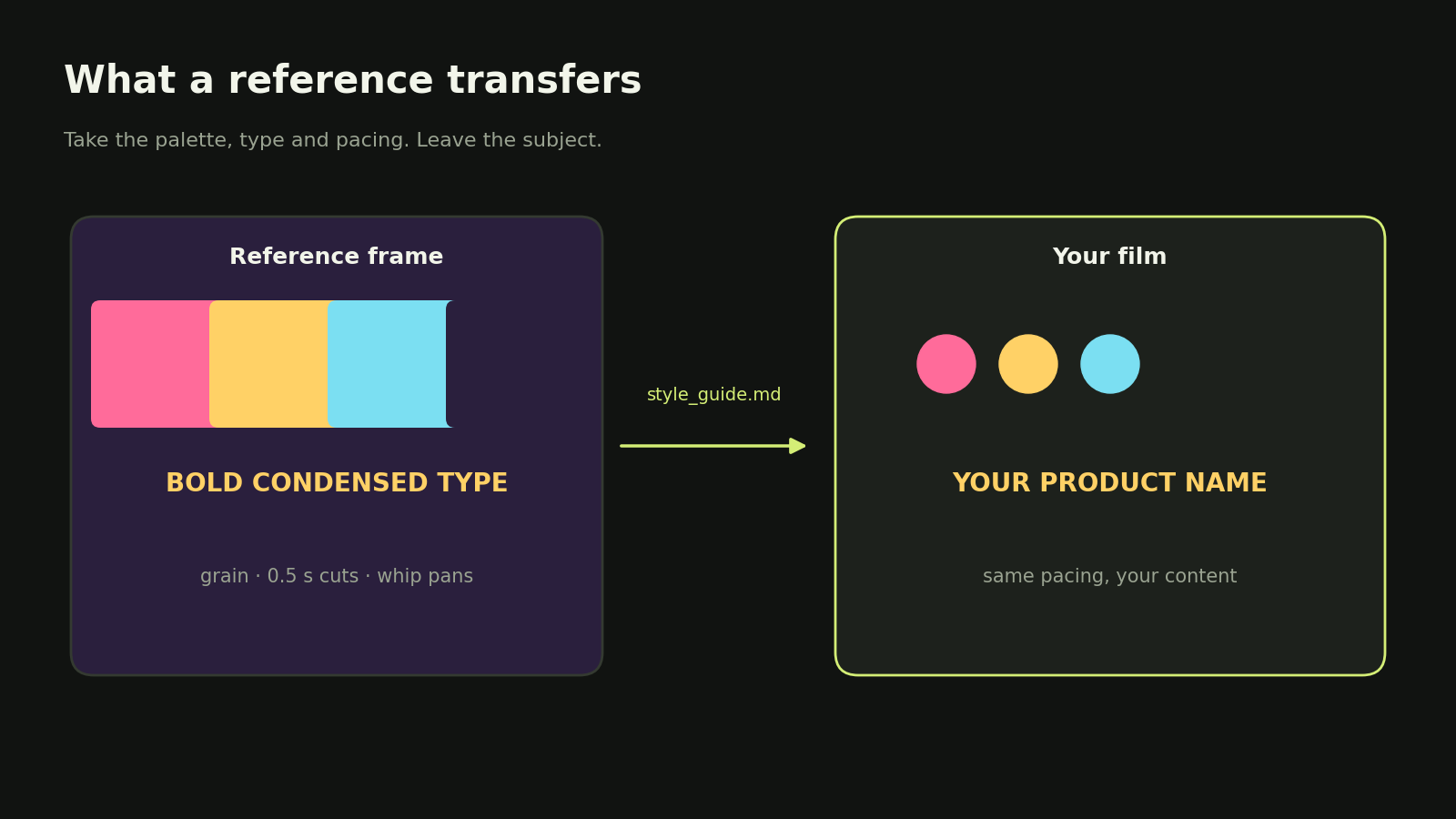
Fig. 2. What a reference actually transfers: palette, type, and pacing, not the subject.
Use Claude Code and Remotion for Reusable Video Production
Use Claude Code with Remotion when the motion system must be reusable, data-driven, or easy to version. Remotion represents video as React components and exposes time through the current frame and composition settings. Claude Code can create those components, run previews, render test frames, and apply revisions in the same project.
The Remotion coding-agent starter flow currently begins with:
npx create-video --yes --blank my-video
cd my-video
npx skills add remotion-dev/skills
A minimal composition can keep timing explicit:
import {
  AbsoluteFill,
  interpolate,
  useCurrentFrame,
  useVideoConfig
} from "remotion";

export const ProductIntro = () => {
  const frame = useCurrentFrame();
  const { fps } = useVideoConfig();
  const opacity = interpolate(frame, [0, fps], [0, 1], {
    extrapolateLeft: "clamp",
    extrapolateRight: "clamp"
  });

  return (
    <AbsoluteFill style={{ backgroundColor: "#0D0F12", color: "white" }}>
      <h1 style={{ opacity }}>Build motion from time</h1>
    </AbsoluteFill>
  );
};
Use data files for approved copy and product facts rather than embedding temporary text across many components. Pin dependencies, record the Remotion version, and review the current license for the intended organization and production model.
Use HTML Canvas or SVG for Compact Custom Motion
Use HTML with Canvas or SVG when the video is short, the visuals are mostly type and geometry, and a full React video framework adds little value. Canvas works well for dense particles, paths, and custom drawing. SVG is preferable when vector elements, text, masks, and individual layers need DOM-level control. CSS transforms can handle simple interface motion.
The page should expose a function such as seek(time) that draws the complete scene for any requested timestamp. A capture script can call that function for each frame and take a screenshot. Avoid animation that depends on wall-clock time because the capture process may pause or run at a variable speed.
This route has a smaller dependency surface, but the team owns more of the system. You must define asset preloading, layout scaling, safe areas, frame capture, and failure handling. It is a good choice when that control is valuable, not merely because the first prototype is short.
Use VosuAI MCP When the Composition Needs Generated Media
Connect VosuAI MCP to Claude when the composition needs generated images or footage that code cannot create efficiently. This is the right point in the workflow to introduce the connector because the decision depends on the visual requirements of a shot, not on a generic tool list.
Use the exact remote endpoint:
https://vosu.ai/mcp
In the Claude app, add that URL as a custom connector and sign in to the same VosuAI account used on the web. For Claude Code, Anthropic's MCP instructions support this remote HTTP setup:
claude mcp add --transport http vosu https://vosu.ai/mcp
claude mcp login vosu
claude mcp get vosu
The VosuAI MCP page checked on September 28, 2026 lists 15 available generation models. That connector catalog is narrower than the broader VosuAI platform catalog.
| Media | Models listed for the current MCP experience |
|---|---|
| Image | Nano Banana 2, Nano Banana 2 Lite, GPT Image 2.0, Z Image Turbo, Flux 2, Seedream v5 Pro, Recraft v3, Grok Image, Luma Photon |
| Video | Seedance 2.0, Kling Video 3.0, Veo 3.1, Veo 3.1 Lite, Omni Flash, Grok Video |
The connector uses the same VosuAI account, subscription, credits, and media library. Generated files are saved to that account, which makes it easier to preserve source assets and prompts with the production. VosuAI permits personal and commercial projects through this workflow, but the user must still verify the selected model's terms and rights for uploaded people, music, logos, footage, and other third-party material.
For a hybrid piece, generate style frames before video clips. Select the direction based on composition and brand fit. Use generated motion only for scenes that require it. Keep claims, interface elements, captions, charts, logos, and calls to action in code so they remain accurate and editable.
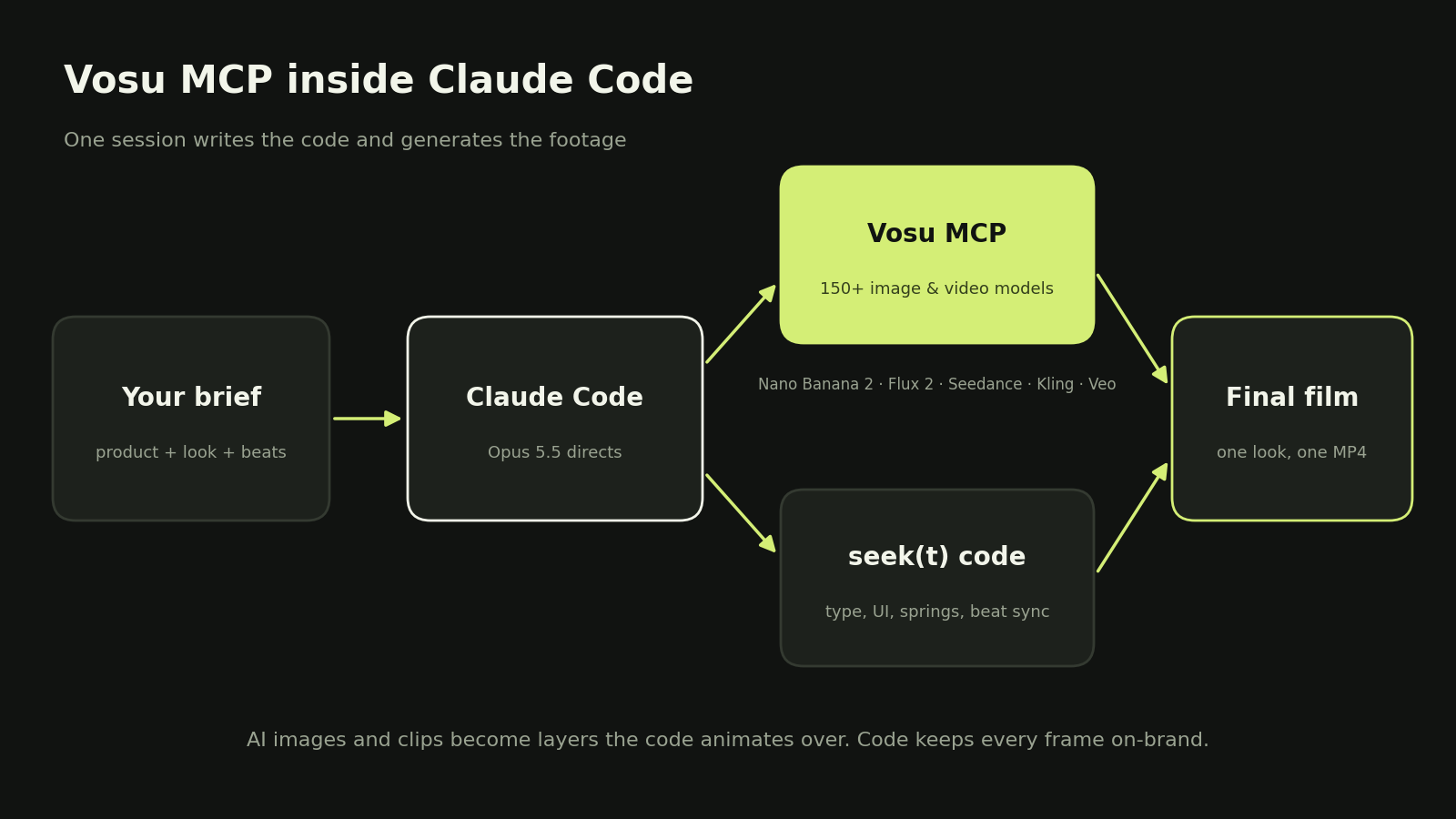
Fig. 3. With the Vosu MCP, Claude writes the code and generates the footage in the same session.
Set Up the Motion Graphics Project
Set up the renderer, encoder, assets, and project rules before asking Claude to build the final sequence. This prevents tool installation, missing files, and creative decisions from becoming mixed into one long debugging loop.
Prepare the Tools and Folder Structure
Prepare Claude Code, a frame renderer, FFmpeg, and a predictable folder structure. Install Claude Code from Anthropic's current quickstart, then verify the active installation. Node.js is needed for Remotion or Playwright, not for every way of installing Claude Code.
| Tool | Role | Check before production |
|---|---|---|
| Claude Code | Edits files, runs commands, and supports the review loop | Confirm the active model and authentication |
| Remotion or Chromium | Evaluates the visual state for each frame | Pin compatible package and browser versions |
| Playwright | Automates exact browser captures when using custom HTML | Install the matching Chromium build |
| FFmpeg and FFprobe | Encode media and inspect the output | Record the installed version and test a sample encode |
| VosuAI MCP | Supplies optional generated source media | Confirm available models, credits, output location, and rights |
Keep inputs, generated intermediates, and deliverables separate:
motion-project/
  assets/
    brand/
    images/
    video/
    audio/
    fonts/
  data/
    copy.json
    timing.json
  src/
  frames/
  review/
  out/
  CLAUDE.md
  README.md
The frames and review folders can be regenerated. The approved assets, data, source, project rules, and README should remain versioned. Do not fetch critical fonts or images from remote URLs during final rendering.
Add Brand Assets Copy and Project Rules
Give Claude approved assets and stable rules before giving it creative freedom. Place final copy, claims, dates, prices, interface captures, colors, fonts, logos, and prohibited treatments in explicit files. If an item has not been approved, label it as a placeholder rather than inviting the model to infer a fact.
Use CLAUDE.md for short rules that apply throughout the project:
# Motion project rules

- Derive every rendered frame from an explicit frame number or time
- Use seeded randomness only
- Load local fonts and images before capture
- Read approved copy from data/copy.json
- Never invent claims, prices, metrics, testimonials, or product screens
- Keep layout logic separate from scene timing
- Render a low-resolution draft before final output
- Create a contact sheet and transition strips after meaningful revisions
- Put delivery files in out and keep the source editable
Put the storyboard, shot details, and long reference analysis in separate files. Project memory works best when it contains durable instructions instead of every conversation detail.
Claude Opus 5.5 uses adaptive thinking, and its documented default effort is medium. Medium is appropriate for ordinary production iterations. Increase effort only when a complex scene, persistent render bug, or major refactor benefits from deeper reasoning. Do not treat a higher effort setting as a substitute for a precise brief or visual evidence.
Build Motion Graphics With Claude Opus 5.5
Build the video in planned stages that preserve factual accuracy, timing control, and visible evidence. Start with the production brief, convert it into timed states, implement a frame-addressable composition, review low-cost renders, and only then encode the delivery files.
Write a Production Brief Claude Can Execute
Write a brief that separates approved facts, creative choices, and acceptance criteria. A useful brief tells Claude what the viewer should understand, what must appear, what may change, and how success will be checked.
Include:
- Goal and audience
- Duration, frame rate, aspect ratios, and target resolution
- Approved copy and factual claims
- Brand assets and usage rules
- Reference attributes to learn from and distinctive elements not to copy
- Audio source and license record
- Required outputs and acceptance tests
Use a prompt shaped like this:
Create a 20-second motion graphics product film for PRODUCT.

Outcome
AUDIENCE should understand PRIMARY BENEFIT and finish on CALL TO ACTION.

Formats
Build native 16:9 and 9:16 compositions at 30 fps.

Approved material
Use only assets in ./assets and statements in ./data/copy.json.
Do not invent claims, prices, metrics, testimonials, or interface states.

Direction
Use REFERENCE for palette, pacing, typography, texture, and transition logic.
Do not copy its subject, logo, layout, or distinctive composition.

Before coding
Return an asset audit, timestamped shot plan, motion rationale, and blocking questions.

Acceptance
Provide editable source, a low-resolution draft, a contact sheet, transition strips,
the final exports, and a report of unresolved factual or rights issues.
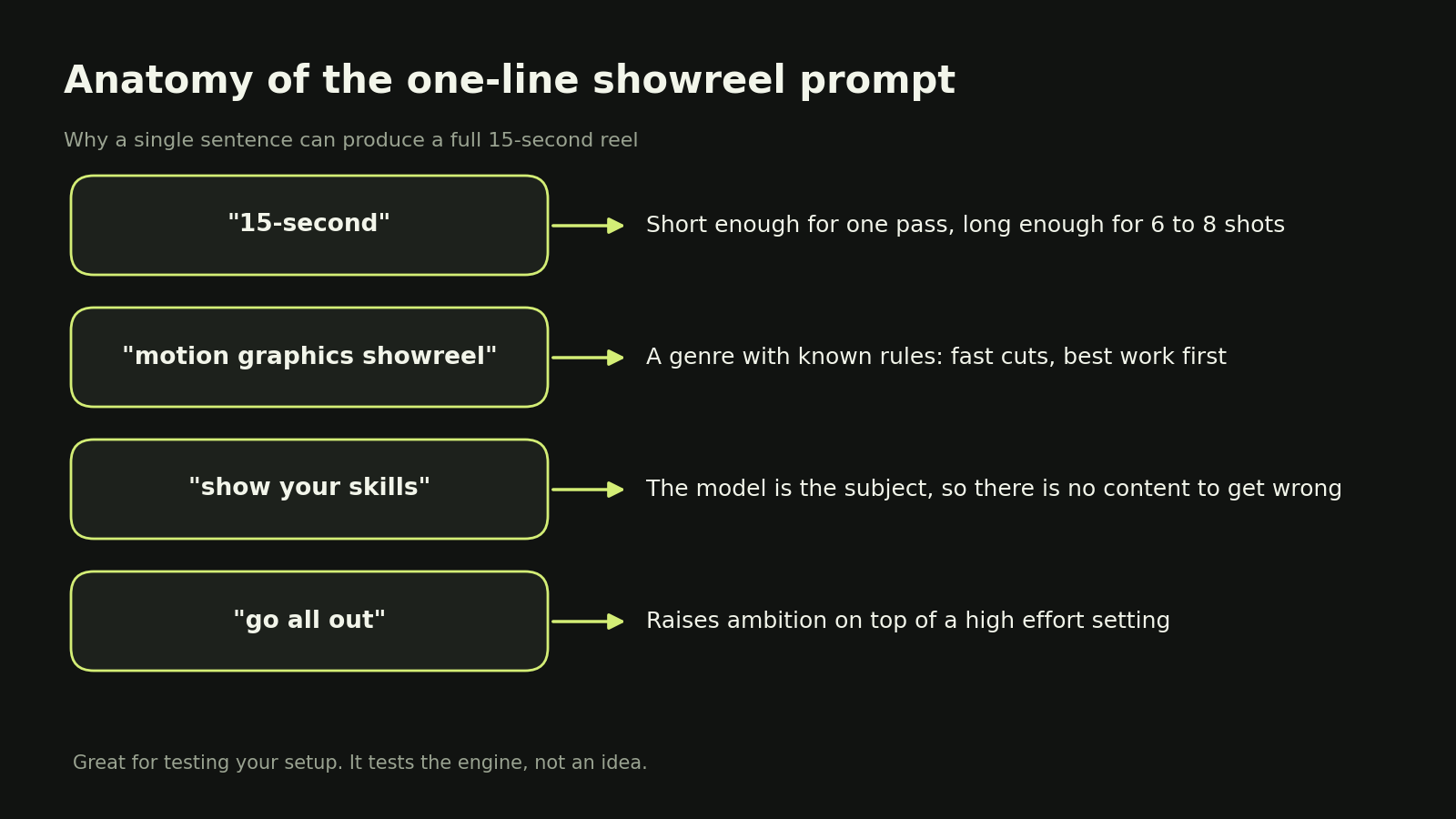
Fig. 4. Why a single sentence can define a complete reel.
This prompt gives Claude room to solve design problems while protecting the information that should not change.
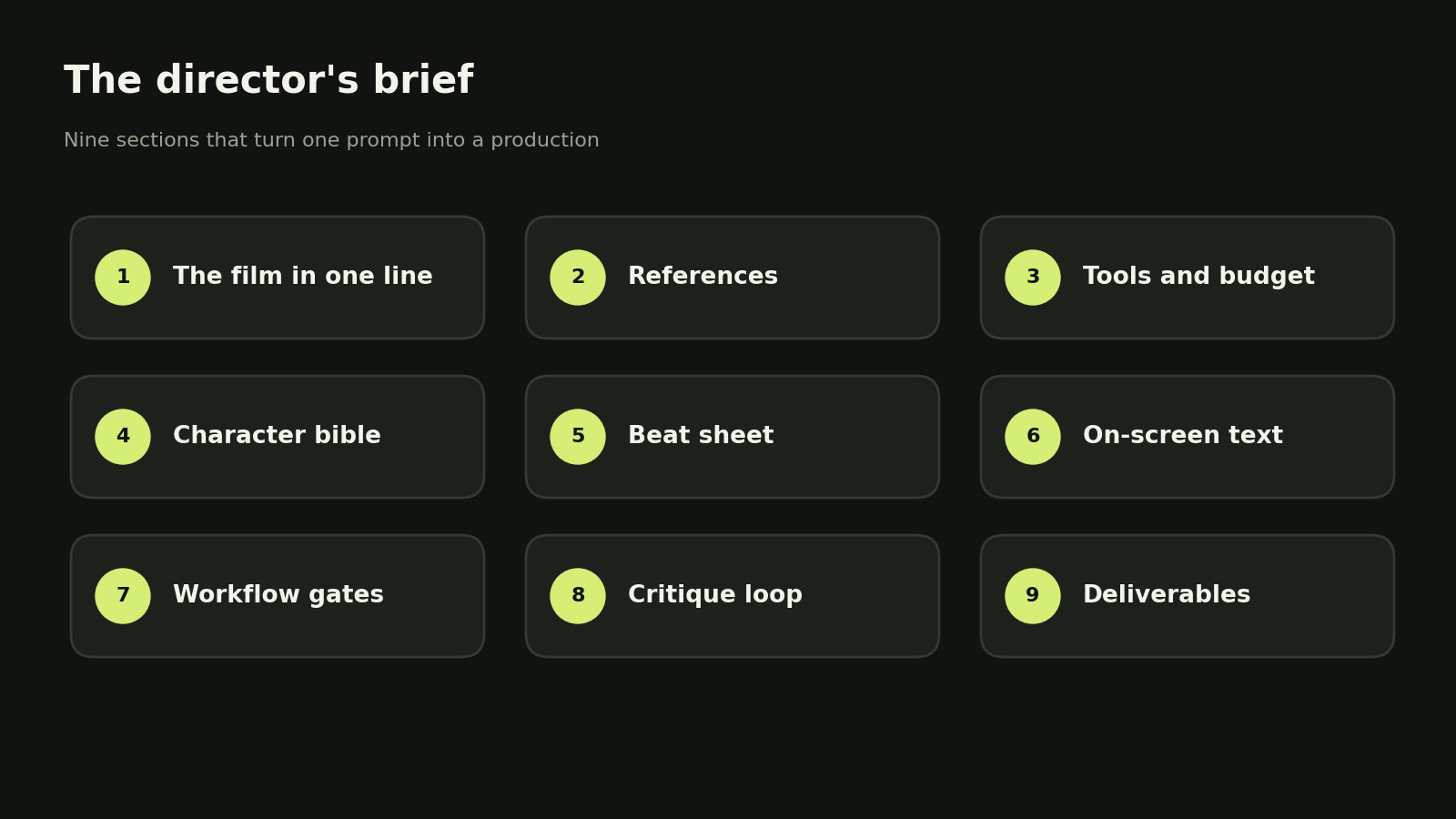
Fig. 5. A director's brief turns one prompt into a complete production plan.
Convert the Script Into Shots and Visual States
Convert every line of the script into a visible state with a start time, end time, transition, and purpose. A style description is not a timeline. Motion becomes controllable only when the project states what appears and why it changes.
| Time | Visible state | Transition and reason |
|---|---|---|
| 0:00–0:02 | One strong problem statement with a restrained background | Fast reveal creates an immediate reading target |
| 0:02–0:06 | Product or concept enters with one supporting label | Directional movement connects the problem to the subject |
| 0:06–0:12 | Two or three proof points appear in sequence | Staggered timing preserves hierarchy and reading time |
| 0:12–0:17 | Product interaction or generated source scene carries the benefit | Visual evidence replaces abstract description |
| 0:17–0:20 | Logo, primary claim, and call to action settle | Motion slows to support recall and clean ending |
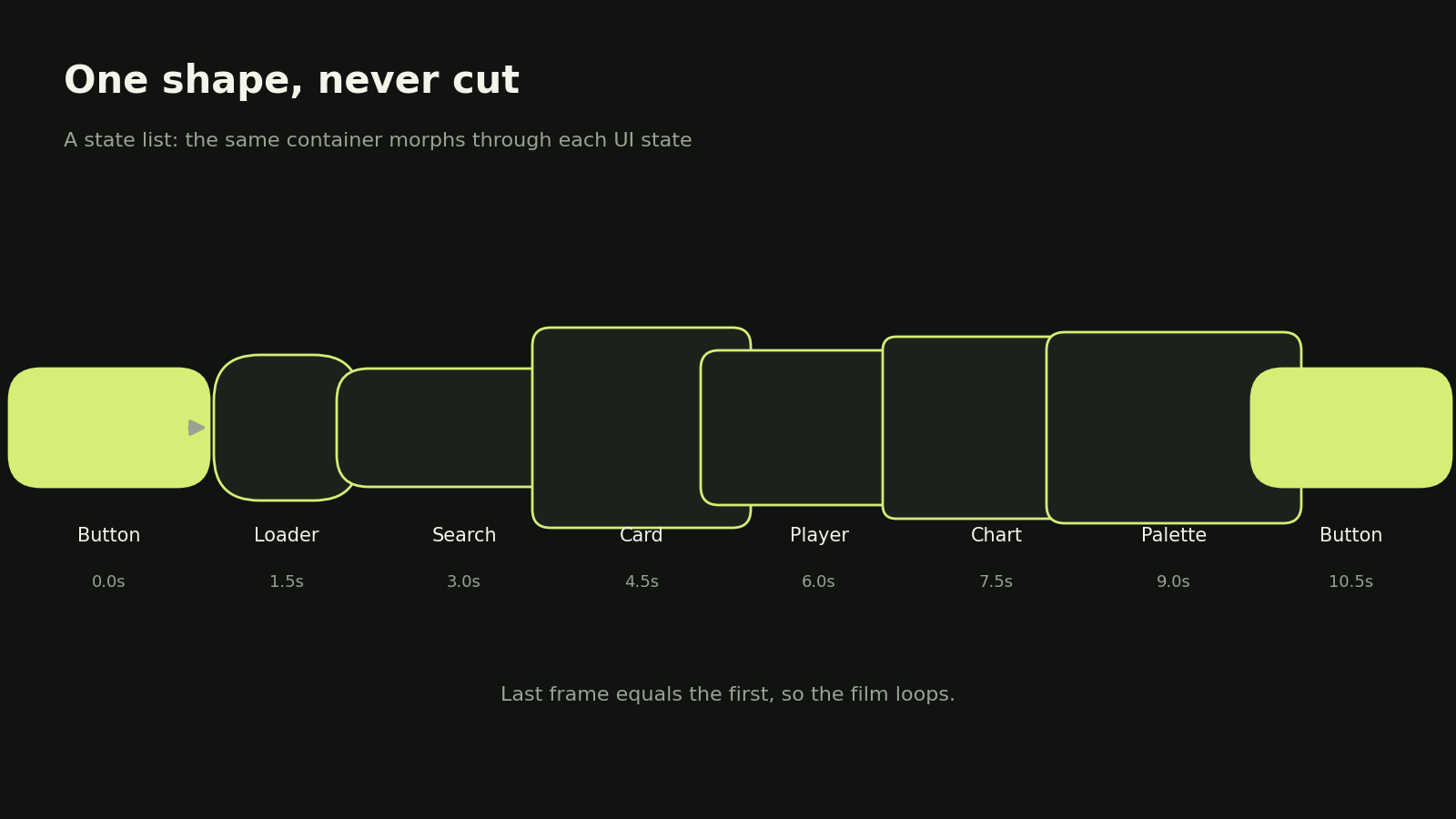
Fig. 6. A state list turns a vague idea into a shot plan the model can execute.
The exact structure should follow the message, not this sample timing. If the narration changes, update the data source rather than manually shifting scattered keyframes. One timing file should remain the source of truth.
Make Every Frame a Function of Time
Make every visual property a reproducible function of the requested frame or timestamp. This allows the renderer to jump to any moment, reproduce a defect, render in parallel, and revise one transition without replaying everything before it.
For a browser composition, expose one deterministic entry point:
const clamp = (value, min, max) => Math.min(max, Math.max(min, value));

function easeOutCubic(t) {
  const p = 1 - clamp(t, 0, 1);
  return 1 - p * p * p;
}

window.seek = (time) => {
  const progress = easeOutCubic((time - 0.4) / 0.8);
  drawBackground();
  drawHeadline({ x: 120, y: 520, opacity: progress });
  drawAccent({ x: 120 + 340 * progress, y: 820 });
};
Avoid Date.now(), live timers, unseeded randomness, and remote assets during frame capture. Wait for fonts and images to finish loading. Deterministic code improves repeatability, but browser, font, dependency, and graphics changes can still alter pixels. Record versions instead of claiming absolute pixel identity across every machine.
Direct Typography Color and Transitions Precisely
Direct typography, color, and transitions with measurable constraints instead of mood words alone. Specify type size ranges, maximum line lengths, safe areas, contrast, alignment, pacing, and the role of each transition. “Premium and cinematic” is too broad to guide a production system.
Useful direction sounds like this:
- Keep the headline to two lines and readable on a 6-inch phone
- Use one display weight and one text weight
- Reserve the accent color for emphasis and state changes
- Let every transition explain continuity, hierarchy, or cause and effect
- Hold important claims long enough to read aloud at a natural pace
- Use overshoot only when the object should feel elastic or energetic
- Remove decorative motion that competes with the message
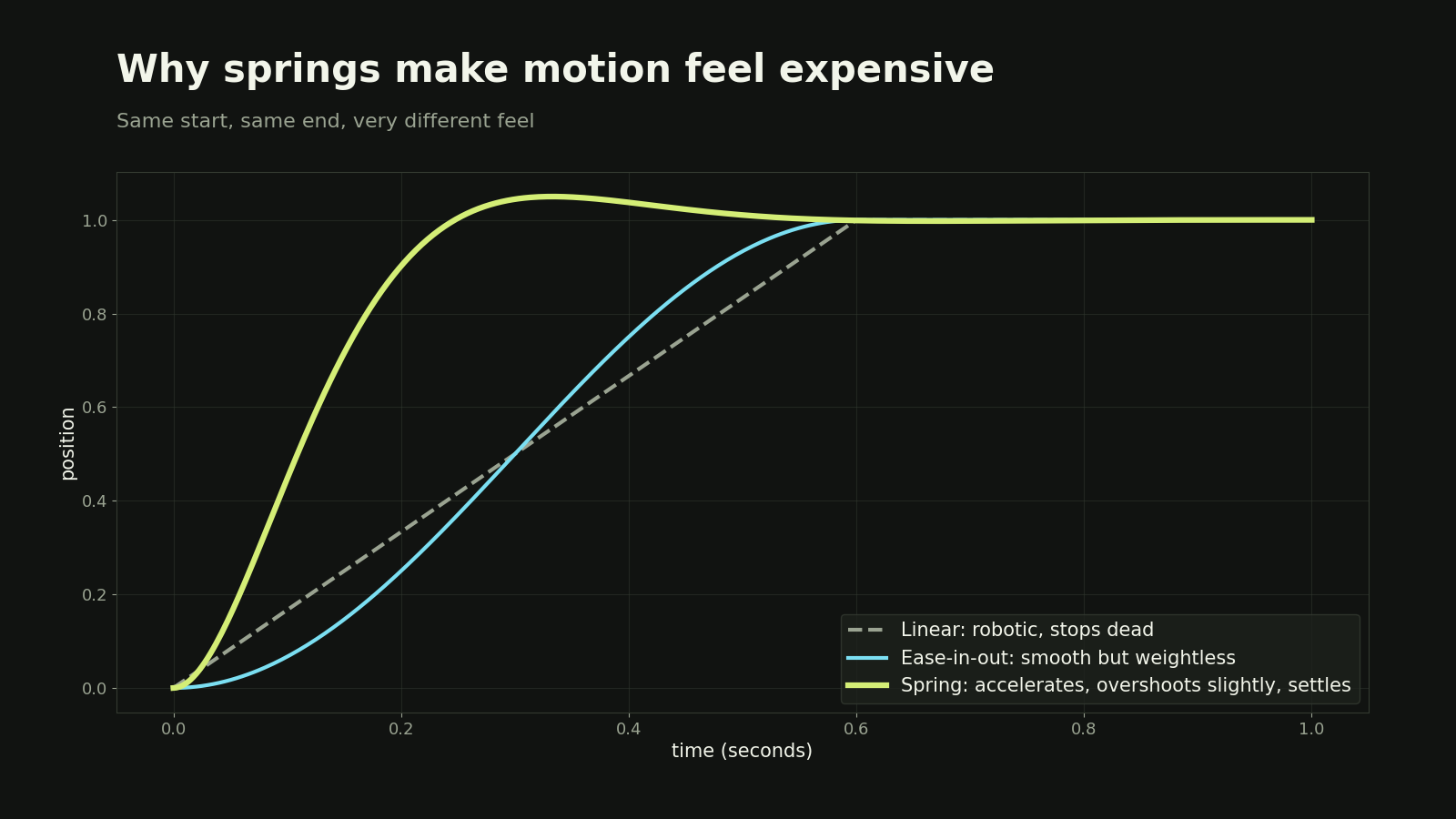
Fig. 7. Linear, eased, and spring motion over the same second.
Ask Claude to explain the purpose of a transition in one sentence before implementing it. If the explanation is merely “to look dynamic,” simplify it or connect it to the narrative.
Render Review and Encode the Video
Render a low-resolution draft, review evidence from the output, fix visible problems, and then encode the final delivery file. A contact sheet reveals hierarchy and pacing across the whole piece. A transition strip exposes clipping, jumps, and awkward intermediate frames around one cut.
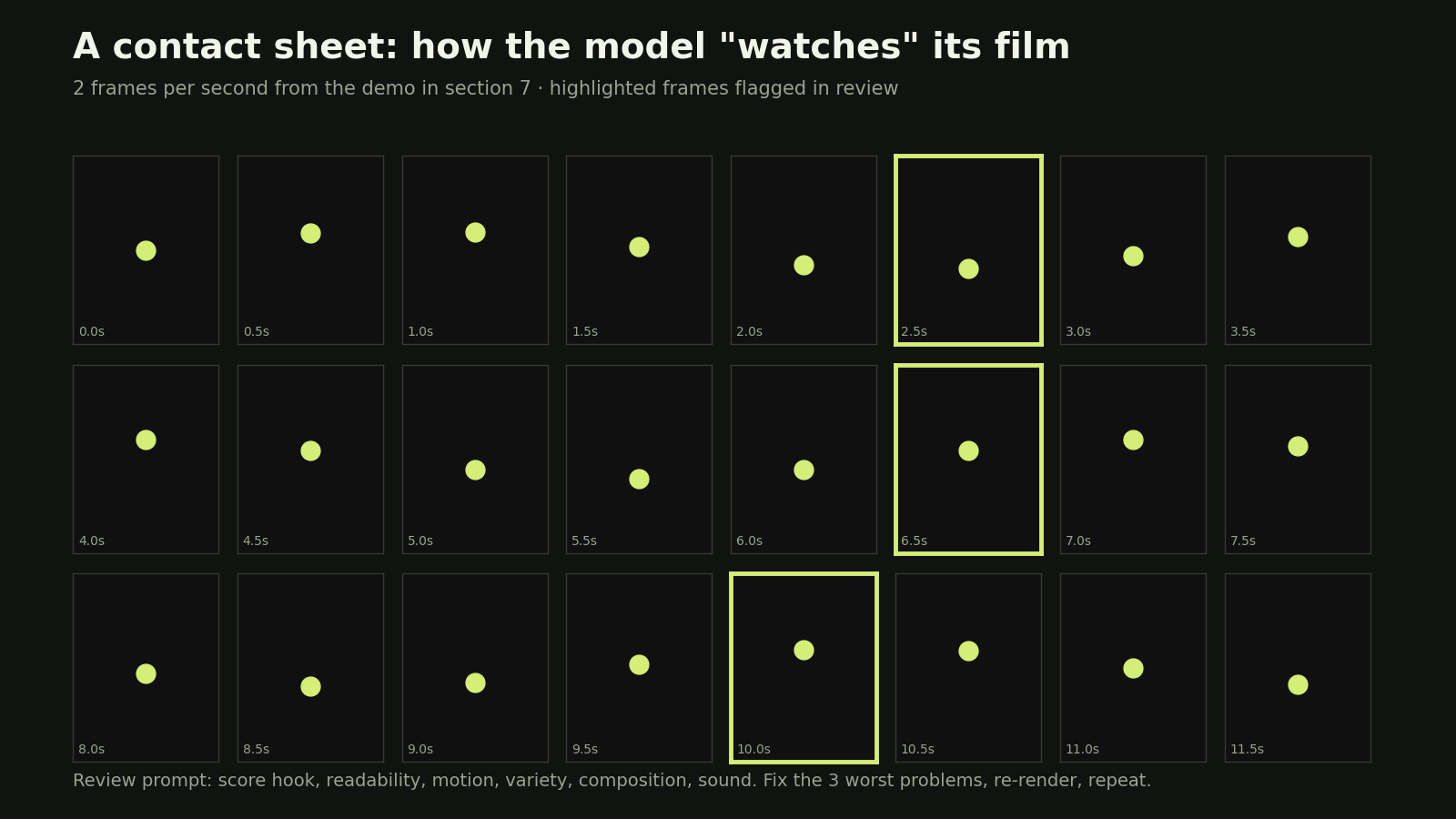
Fig. 8. The contact sheet helps Claude inspect the visual evidence from its own render.
For a custom browser timeline, the capture loop should wait for assets and request exact times:
for (let frame = 0; frame < totalFrames; frame += 1) {
  const time = frame / fps;
  await page.evaluate(async (value) => {
    await document.fonts.ready;
    await window.seek(value);
  }, time);

  const filename = `frame-${String(frame).padStart(5, "0")}.png`;
  await page.screenshot({ path: `frames/${filename}` });
}
Encode the image sequence after the visual frames are approved:
ffmpeg -y \
  -framerate 30 \
  -i frames/frame-%05d.png \
  -i assets/audio/master.wav \
  -c:v libx264 \
  -pix_fmt yuv420p \
  -c:a aac \
  -shortest \
  -movflags +faststart \
  out/motion.mp4
Verify the file instead of relying on the exit status:
ffprobe -v error \
  -show_entries stream=codec_name,width,height,r_frame_rate \
  -show_entries format=duration \
  -of json \
  out/motion.mp4
Review the final MP4 in a media player with sound. Check the first and last frames, scene boundaries, copy, logo treatment, safe areas, captions, duration, resolution, frame rate, codec, audio stream, and file playback.
What Motion Graphics Work Best With Claude Opus 5.5
Claude Opus 5.5 works best on motion graphics whose layout, timing, and state changes can be expressed as code. Strong candidates include kinetic type, interface walkthroughs, animated charts, product explainers, logo systems, diagrams, geometric sequences, lower thirds, captions, and repeatable social templates.
The model is most valuable when the deliverable must remain editable or when one system must create many variants. A campaign can swap language, aspect ratio, color theme, offer, or data while preserving the same motion grammar. The source remains inspectable, which is useful when factual copy requires approval.
Generated or recorded footage is usually more efficient for realistic faces, natural performance, fluid fabric, busy environments, and camera movement through a physical scene. Claude can still control the edit, overlays, transitions, and final assembly around those assets.
What Claude Opus 5.5 Cannot Do Natively
Claude Opus 5.5 does not natively return a rendered video or accept a complete video as a standard model input. It returns text and can analyze supplied images. The production environment must create the frames, handle audio, and encode the delivery file.
It also cannot independently verify that a logo is current, a statistic is approved, music is licensed, a generated person has appropriate consent, or a product screen is accurate. Those facts come from the project's source files and human review. Tool access extends what Claude can execute, but it does not turn assumptions into evidence.
For reference-video analysis, extract frames at meaningful timestamps and label them in sequence. Provide a transcript or measured audio markers for speech and music. This gives Claude observable inputs instead of asking it to imagine missing information.
How to Prevent Generic AI Motion Design
Prevent generic motion design by constraining the message, visual system, and behavior of each scene before generation begins. Generic output usually starts with a generic brief that asks for energy, polish, or cinematic style without defining a specific composition or editorial point of view.
Use real brand assets, approved copy, a small visual vocabulary, and reference attributes rather than a request to imitate another creator. Vary scale, density, and tempo intentionally. Preserve quiet moments so every second is not competing for attention. Let one dominant idea organize each shot.
A useful review question is: “What does this motion clarify?” Keep movement that directs attention, explains a relationship, confirms an action, or carries continuity. Remove movement that exists only to fill space. The result will feel authored because the decisions support a specific message.
How to Add Music Voice and Captions
Add music, voice, and captions from measured media files, then align visual events to one shared timing source. Record duration, sample rate, beats, sentence boundaries, and important sound cues before final animation. Do not ask Claude to guess audio timing from a track name.
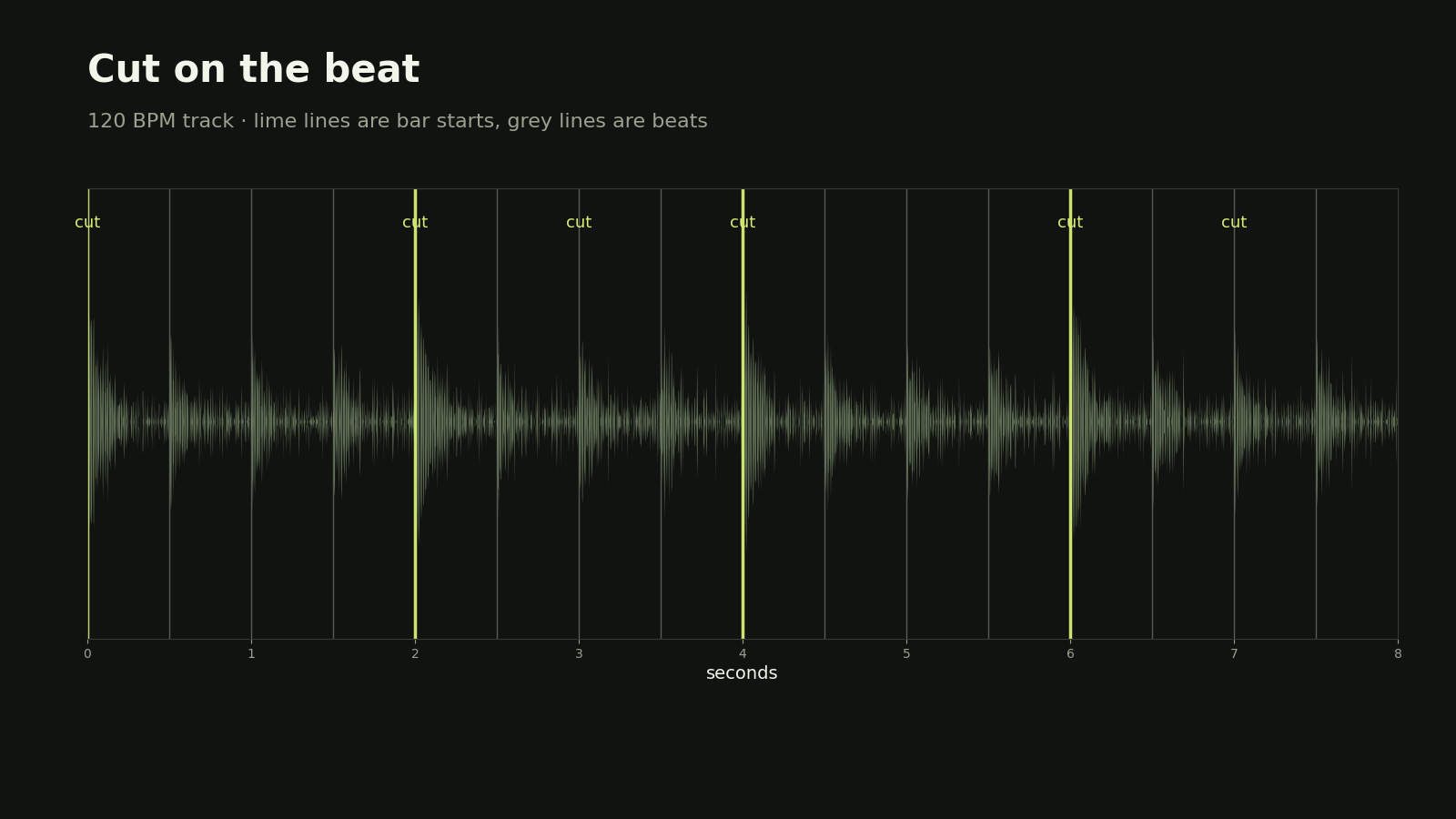
Fig. 9. A beat grid aligns scene changes with measured audio cues.
Keep voice, music, and effects as separate sources until the final mix. Store license and attribution information beside each asset. Reduce music beneath speech, check peaks and integrated loudness for the destination, and listen for clipped starts or endings after encoding.
Captions should follow the approved transcript rather than an improvised summary. Use readable line lengths, sufficient contrast, and timing that reflects spoken phrases. Export a caption file when the platform supports it and consider burned-in captions only when the distribution context requires them.
How to Adapt One Composition for Multiple Formats
Adapt a composition by preserving the message hierarchy while rebuilding layout and camera decisions for each aspect ratio. Cropping a 16:9 master into 9:16 often removes context, shrinks type, or places key information under platform controls.
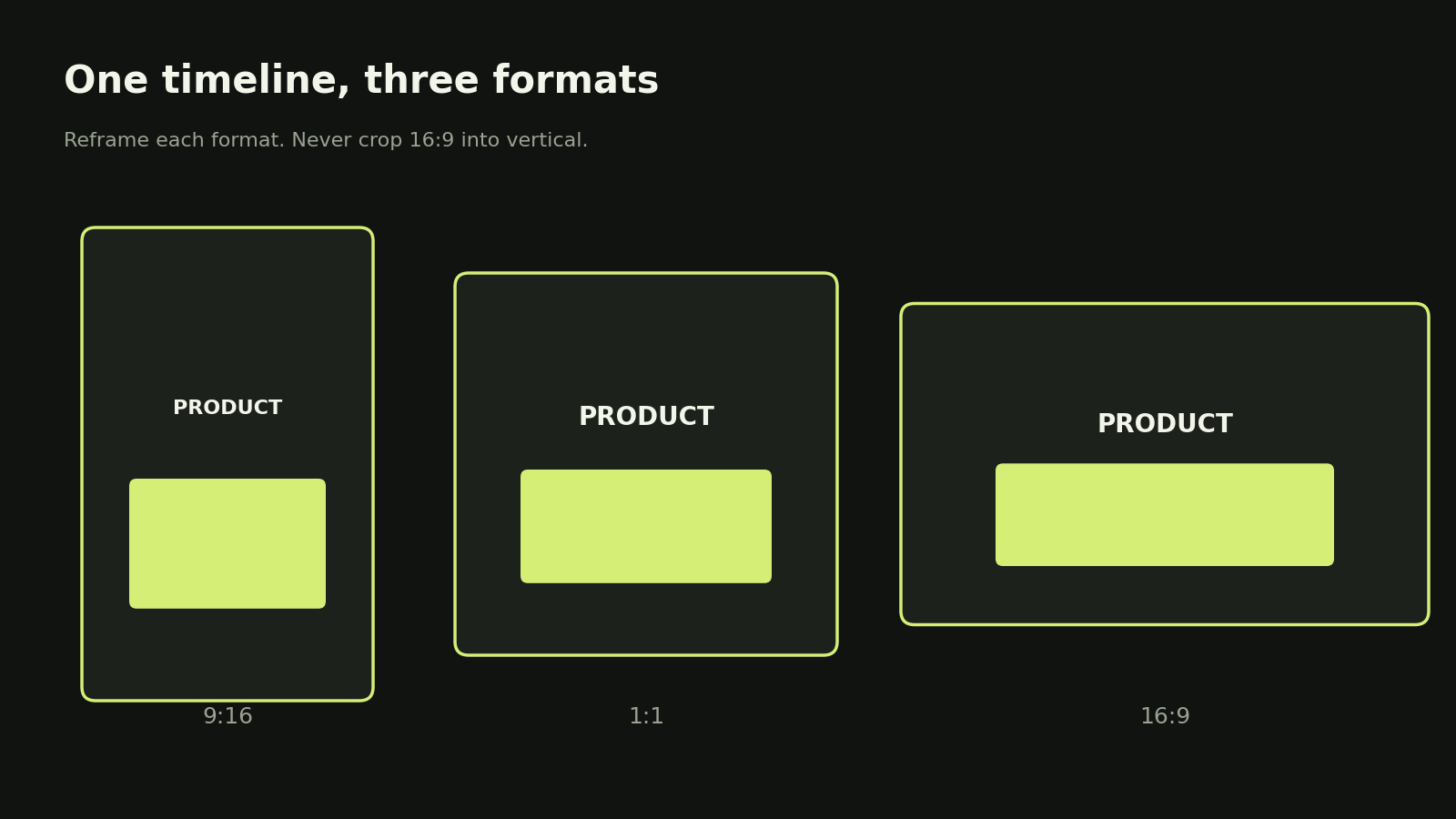
Fig. 10. One timeline, three formats, each reframed rather than cropped.
Create layout tokens for margins, title width, media bounds, logo position, caption zone, and call-to-action placement. Let the composition select those tokens from its dimensions. Keep shared timing where it still works, but allow shot duration or line breaks to change when the reading experience requires it.
Common canvases include 1920 by 1080 for 16:9, 1080 by 1920 for 9:16, and 1080 by 1080 for 1:1. These are production starting points, not universal upload rules. Confirm the current destination specifications and test on a real small screen before delivery.
How Much a Claude Opus 5.5 Motion Graphics Project Costs
Project cost combines Claude usage, render compute, generated media, licensed assets, and human review time. Anthropic lists Claude Opus 5.5 API pricing at $4 per million input tokens and $20 per million output tokens as of September 28, 2026. Subscription access and API billing are different purchasing routes, so calculate with the route actually used.
Token cost rises with long context, repeated code generation, and high-output revisions. Render cost depends on duration, resolution, frame rate, effects, and whether frames run locally or in cloud infrastructure. VosuAI generation uses the connected account's credits and varies by selected model and settings.
Budget for review rather than estimating from one successful prototype. A commercial piece may need copy approval, art direction, accessibility checks, music clearance, model-output review, and multiple format exports. Recheck all live prices before publication because they can change.